Exporting reports
Report Center provides many options for exporting the data in your reports.
|
•
|
You can export grid reports, including those in Summary only view, to CSV, PDF, or Excel formats. In Pivot view, you can export to CSV only. |
|
•
|
You can export chart reports to PNG, HTML, JPEG, or PDF formats. |
|
•
|
The export options for custom reports depend on the type of system report on which they are based. |
|
•
|
You can export templated reports to PDF format. |
|
•
|
When you select View data in charts or maps, you can export that data to CSV, Excel, and PDF formats |
You also have various options for formatting the exported report. The formatting options that are available depend on the report type:
|
•
|
When exporting to CSV or PDF, the Apply formatting option is available to apply the configured type formatting options from the grid. When this option is selected, certain number options can cause numbers to appear as strings. When cleared, dates are strings in ISO-8601 standard format (for example, 2014-05-17T17:00:00.000Z). |
|
•
|
When exporting to Excel, the Format dates for recognition in Excel option is available. When this option is selected, the system ignores grid formatting and attempts to format dates so that Excel recognizes them (values are in UTC format). When the option is cleared, dates are strings formatted as they appear in the grid. |
Note: Although the data exported has security restrictions, the file itself does not. Depending on where you choose to store the exported files, exporting data may result in the creation of additional temporary and permanent files on your computer. If the exported files contain sensitive data, people may be able to see and access exported reports and data that they don't have access to in Report Center. Contact your system administrator with any questions regarding the proper safeguarding of sensitive information.
Exporting grid reports
You can export grid reports (including those in Summary only view) to CSV, Excel, or PDF format. In Pivot view, you can export to CSV only.
To export a grid report:
|
1.
|
Open the report and click  (Export) in the toolbar. (Export) in the toolbar. |
|
2.
|
Select the output format. |
|
•
|
If necessary, change the file name that the system supplies. |
|
•
|
If you select CSV or PDF, specify whether to apply formatting. |
|
•
|
If you select Excel, specify whether to format dates for recognition in Excel, and enter the worksheet name. |
|
3.
|
Click EXPORT. The system converts the report and saves it in your Downloads folder (or you may be prompted for the download location). You can click CANCEL to cancel the export. |
Exporting grid reports with groups and aggregates
You have the following options for exporting grid reports that include groups and aggregates:
|
•
|
If the report contains no groups, the system exports detail data. |
|
•
|
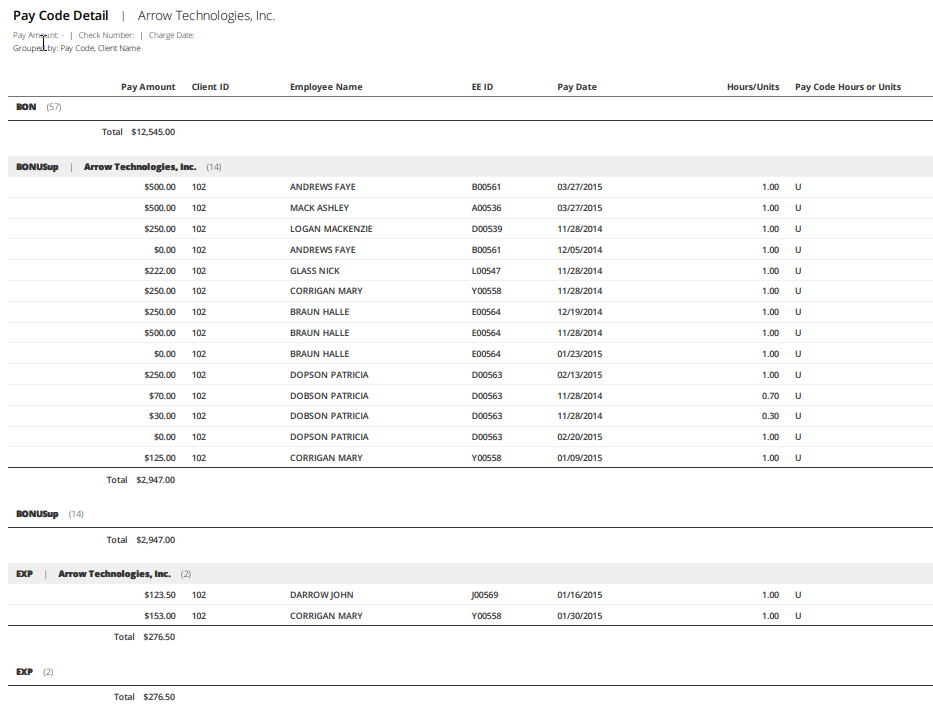
If the report contains groups and aggregates, the system exports it with all groups expanded and shows the aggregate type stacked under each group. |
|
•
|
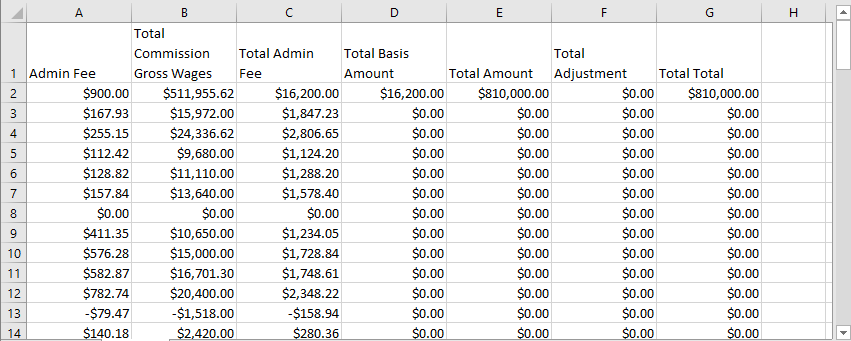
If the report is in Summary only view and it contains groups and aggregates, the system exports summary data only and shows each aggregate in its own column. See Viewing summary data. |
Exporting chart reports
You can export charts to PNG, HTML, JPEG, and SVG formats. When you select View data in charts, you can export that data to CSV, Excel, and PDF formats.
To export a chart report:
|
1.
|
Open the report and click (Export) in the toolbar. |
|
2.
|
Select the output format. The system converts the report and saves it in your Downloads folder (or you may be prompted for the download location). |
Exporting data in chart or map reports
When you select View data in charts or maps, you can export that data to CSV, Excel, and PDF formats.
To export the data in a chart or map report:
|
1.
|
Double-click a bar (or other data point) in the chart and click (Export). |
|
2.
|
Select the output format. |
|
•
|
If necessary, change the file name that the system supplies. |
|
•
|
If you select CSV or PDF, specify whether to apply formatting. |
|
•
|
If you select Excel, specify whether to format dates for recognition in Excel, and enter the worksheet name. |
|
3.
|
Click EXPORT. The system converts the report and saves it in your Downloads folder (or you may be prompted for the download location). You can click CANCEL to cancel the export or RUN IN BACKGROUND to run it in background mode. |
Exporting custom reports
You can export a custom grid, map, or chart report to PDF, XLS, or CSV format. The available formats depend on whether it is based on a grid, chart, or map report.
To export a custom report:
|
1.
|
Open the report and click (Export) in the toolbar. |
|
2.
|
Select the output format. The system converts the report and saves it in your Downloads folder (or you may be prompted for the download location). |
Exporting templated reports
You can export a templated report to PDF format.
To export a templated report:
|
1.
|
Open the report and click (Export) in the toolbar. |
|
2.
|
Select the output format. The system converts the report and saves it in your Downloads folder (or you may be prompted for the download location). |
Examples
The following example shows part of a report with groups and aggregates that was exported to Excel with Summary only enabled.
The following example shows part of a report that was exported to PDF with Summary only disabled. Aggregate subtotals are stacked under each group.